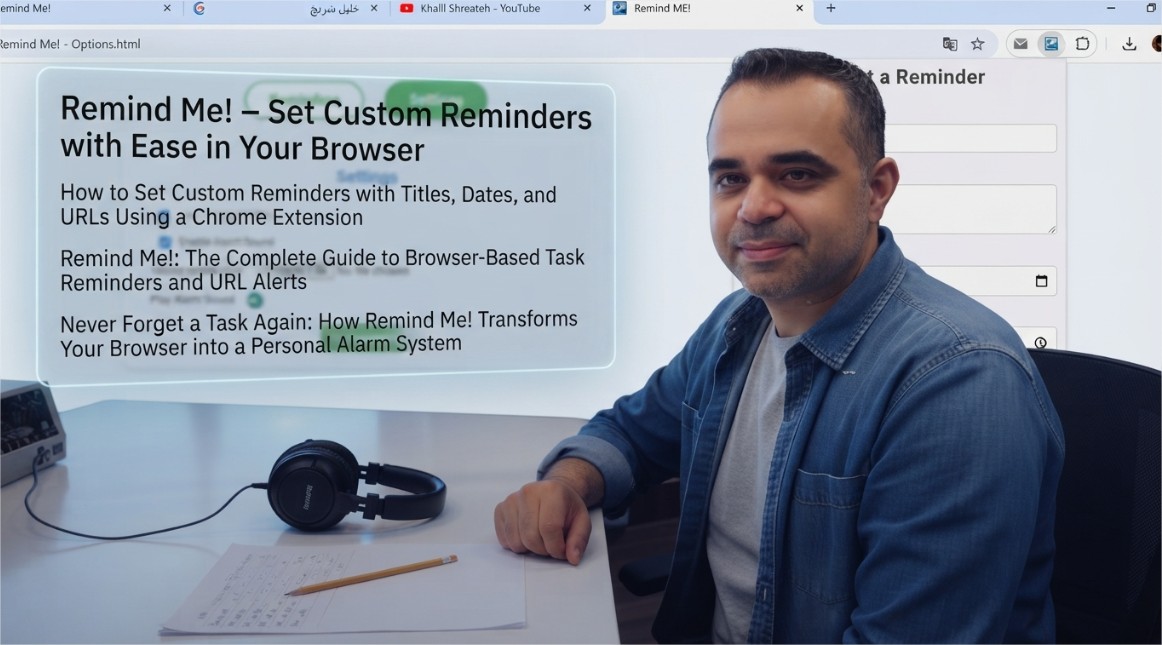
The human brain is not designed to remember everything. Between meetings, deadlines, personal commitments, and the constant stream of digital information, important tasks inevitably slip through the cracks. The solution is not to improve memory—it is to offload the responsibility of remembering to a system that never forgets. Browser-based reminder extensions serve this exact purpose, providing a lightweight, always-accessible mechanism for capturing tasks and deadlines as they arise.
The Remind Me! Chrome extension offers a straightforward yet powerful approach to task management. Rather than requiring users to navigate to external applications, open separate tabs, or maintain complex project management tools, the extension lives in the browser toolbar and provides instant access to reminder creation, management, and alerts.
What the Remind Me! Extension Does
The extension enables users to create custom reminders with full control over the content and timing. Each reminder can include:
- Title: A concise label that identifies the task or event
- Description: Additional details, notes, or context for the reminder
- Date and time: Precise scheduling for when the reminder should trigger
- URL: A web address to attach to the reminder, perfect for tracking online tasks, articles to read, or websites to revisit
When the scheduled time arrives, the extension triggers a notification through the Windows notification system. This ensures that reminders are visible even when the browser is minimized or when the user is working in other applications. The notification includes the reminder title and description, providing all the necessary context at a glance.
Context Menu Integration: Creating Reminders from Any Webpage
One of the extension's most practical features is its integration with the browser's context menu. Users can highlight any text on a webpage, right-click, and send that text directly to the extension as a reminder title. The extension automatically captures the current tab's URL and attaches it to the reminder.
This workflow is particularly valuable in the following scenarios:
- Research and reading: Highlight a passage from an article, right-click, and set a reminder to return to that specific section later
- Online shopping: Highlight a product name or description and save the page URL for later purchase consideration
- Task delegation: Highlight action items from emails or documents and create reminders with the relevant context attached
- Event tracking: Highlight event details from a webpage and save the URL for easy access when the reminder triggers
This integration eliminates the need to manually copy and paste URLs or retype text, reducing friction and making the reminder creation process instantaneous.
Reminder Management Interface
The extension provides a popup interface that displays all active reminders in a clean, organized list. From this interface, users can:
- View all scheduled reminders with their titles, dates, and times
- Edit existing reminders to update titles, descriptions, dates, times, or URLs
- Delete reminders that are no longer needed
- Create new reminders directly from the popup interface
This centralized management approach ensures that users maintain full control over their reminders without having to navigate through multiple screens or menus.
Technical Implementation and Privacy Considerations
The extension operates entirely within the browser's extension framework. Reminders are stored locally, and the extension does not transmit any data to external servers. The developer has explicitly disclosed that the extension does not collect or use any user data, does not sell data to third parties, and does not use data for any purpose unrelated to the extension's core functionality.
Notifications are delivered through the Windows notification system, which requires that the Chrome browser has permission to display notifications. This is a standard Windows permission setting that users can configure through the Windows Settings application.
The extension is built using Manifest V3, the latest version of Chrome's extension platform, which enforces stricter security controls and limits the scope of permissions that extensions can request. This ensures that the extension operates with minimal privileges while still providing its full reminder capabilities.
Why Browser-Based Reminders Matter
The value of a reminder system is not just in the reminders themselves—it is in the cognitive offloading they provide. When users know that a task is recorded and will trigger at the appropriate time, they can stop thinking about it. This frees mental bandwidth for the work that actually requires attention.
Browser-based reminders offer distinct advantages over other reminder systems:
- Always accessible: The browser is already open for most knowledge workers, making the reminder system immediately available
- Contextual relevance: The ability to capture URLs and page content directly ties reminders to the specific context in which they were created
- Low friction: Creating a reminder takes seconds—no app switching, no account creation, no sync delays
- Cross-task visibility: Reminders appear in the browser regardless of which application is currently in focus, ensuring they are not missed
Who Benefits from Remind Me!
The extension is designed to be useful across a wide range of use cases:
- Students: Set reminders for assignment deadlines, exam dates, and study sessions
- Professionals: Track meeting times, project milestones, and follow-up tasks
- Researchers: Save articles and resources for later review with automatic URL capture
- Online shoppers: Set reminders for product launches, sales events, or restock notifications
- Content creators: Schedule reminders for content publication dates, editing sessions, and research tasks
How to Install and Use Remind Me!
The extension is available for free on the Chrome Web Store. Installation takes only a few seconds:
- Navigate to the Remind Me! listing in the Chrome Web Store
- Click the "Add to Chrome" button
- Confirm the permissions requested by the extension
- Once installed, pin the extension to the toolbar by clicking the puzzle piece icon and selecting the pin icon next to the extension's name
To use the extension, click the icon in the toolbar. The popup interface displays existing reminders and provides options to create new ones. To create a reminder, enter a title, optional description, select a date and time, and optionally add a URL. Click Save, and the reminder is scheduled.
For quick reminder creation from any webpage, highlight text, right-click, and select the Remind Me! option from the context menu. The highlighted text becomes the reminder title, and the current page URL is automatically attached.
When a reminder triggers, a Windows notification appears with the reminder title and description. Clicking the notification opens the associated URL if one was attached, or simply dismisses the notification.
The extension's footprint—approximately 90 KiB—means it has minimal impact on browser performance. It does not run background processes beyond what is necessary for notification scheduling, ensuring that it remains lightweight and responsive.
The Remind Me! extension represents a focused, practical tool that solves a specific problem: ensuring that important tasks and deadlines are never forgotten. Whether you are a student tracking assignments, a professional managing projects, or anyone who needs to remember things, the extension provides a simple, reliable, and privacy-respecting solution.
Written by Khalil Shreateh Cybersecurity Researcher & Social Media Expert Official Website: khalil-shreateh.com