
iOS Sideloading · Step-by-Step Guide
Three tools, one goal: running apps on your iPhone that Apple's own App Store will never carry, without a paid developer account and without jailbreaking anything.
This guide walks through installing SideStore and LiveContainer using iLoader on both Windows and Mac, covers exactly what each tool actually does and why you need all three together, and works through the real errors people actually run into — including the exact "SideStore could not determine this device's UDID" failure that trips up a huge number of first-time installs, verified against SideStore's own documentation and real bug reports filed by other users hitting the identical wall.
📋 Table of Contents
- What SideStore, iLoader, and LiveContainer Each Actually Do
- What You Need Before You Start
- Installing on Windows
- Installing on Mac
- Finishing Setup on Your iPhone or iPad
- Adding LiveContainer on Top of SideStore
- The UDID Error From the Screenshot, Explained and Fixed
- Every Other Common Failure, and How to Actually Fix It
1. What SideStore, iLoader, and LiveContainer Each Actually Do
These three names get thrown around interchangeably in forum posts, which is exactly why setup confuses people who are new to this. They're not competing options — they're three separate layers that stack on top of each other.
SideStore is the actual app store replacement living on your iPhone. It resigns apps using your own free Apple developer identity and periodically refreshes them in the background so they don't expire, the way any app signed with a free account normally would after seven days.
iLoader is the desktop companion program — the piece running on your Windows PC or Mac that talks to your iPhone over USB, handles your Apple Account sign-in, generates the special pairing file your phone and SideStore rely on to communicate wirelessly afterward, and performs the actual install of SideStore onto the device.
LiveContainer solves a different, specific problem on top of all this: a free Apple developer account only allows a handful of app IDs active at once. LiveContainer works around that limit by acting as a single app that can load and run many separate IPA files inside it, so you're not burning through your limited app-ID slots one sideloaded app at a time.
2. What You Need Before You Start
- An iPhone, iPad, or iPod touch with a passcode set, running iOS or iPadOS 15.0 or newer.
- A Windows 8 or newer PC, or a Mac running macOS High Sierra or newer.
- An Apple Account (Apple ID) — it doesn't need to be the same one signed into the device itself.
- A Wi-Fi network specifically. Mobile data will not work for the install process — both the computer and iPhone should ideally be on the same Wi-Fi network.
- A USB cable to connect the iPhone to the computer for the initial setup.
3. Installing on Windows
-
Install iTunes firstWindows needs Apple's USB drivers to talk to an iPhone at all. Download iTunes directly from Apple's website, or from the Microsoft Store. If neither installs cleanly, the Apple Devices app from the Microsoft Store is a documented alternative.
-
Confirm your Windows version is supported32-bit Windows and Windows 10 on ARM are not supported. If you're unsure, press Win+R, type
control /name microsoft.system, and check "System type" in the window that opens. -
Download and run the iLoader installerGrab either the MSI installer (recommended) or the EXE version, and run it.
-
Connect your iPhone via USBTrust the computer on your phone when prompted, and enter your passcode.
-
Open iLoader and sign inSign in with your Apple Account — remember, the password field is case-sensitive.
-
Select your device, then install SideStoreChoose your iPhone or iPad from the list, then select "Install SideStore (Stable)."
4. Installing on Mac
-
Download and install iLoader for MacDownload the macOS universal build directly and run the installer.
-
Connect your iPhone via USBTrust the computer on your device, and enter your passcode when prompted.
-
Open iLoader and sign inSign in with your Apple Account. Case sensitivity applies here too.
-
Select your device and install SideStorePick your iPhone or iPad from the device list, then choose "Install SideStore (Stable)."
5. Finishing Setup on Your iPhone or iPad
Once iLoader finishes the install, the last steps happen entirely on the device itself.
- Open Settings, go to General, then VPN & Device Management.
- Under "Developer App," tap the entry named after your Apple Account, select Trust, then Allow & Restart, and enter your passcode to confirm.
- Go to Privacy & Security, scroll to the bottom, and turn on Developer Mode. Your device will restart.
- Install and open the LocalDevVPN app from the App Store, and tap Connect — this VPN needs to stay connected any time you're installing, updating, or refreshing apps.
- Open SideStore and sign in using the same Apple Account you used in iLoader.
- Go to My Apps, and tap the "7 DAYS" counter next to SideStore itself to complete the initial setup and trigger a manual refresh.
- If you're prompted to revoke or create a new signing certificate, tap Yes or Refresh Now.
A successful setup ends with SideStore briefly kicking you back to your Home Screen along with a notification, then reopening on its own a few seconds later.
6. Adding LiveContainer on Top of SideStore
With SideStore running, LiveContainer installs the same way any other sideloaded app does.
- On the LiveContainer GitHub releases page, choose either the standalone
LiveContainer.ipa, or the combinedLiveContainer+SideStore.ipaif you'd rather have both bundled together. - Open SideStore, import the downloaded IPA file the same way you'd install any app through it, and let it sign and install normally.
- Once LiveContainer is installed and opened, tap the plus icon in the top-right corner to add individual app IPA files into it.
- Tap an installed app inside LiveContainer to launch it, or long-press it to manage its settings, including multitasking options on supported iOS versions.
7. The UDID Error From the Screenshot, Explained and Fixed
The exact error shown in the screenshot — "SideStore could not determine this device's UDID. Please replace your pairing using iloader" — is one of the most frequently reported issues in SideStore's own GitHub bug tracker, and the underlying cause is consistent across nearly every report of it.
Behind the scenes, SideStore relies on a component called minimuxer to identify your device over the local network connection created by LocalDevVPN. When that identification step times out — the logs typically show a line reading something like [minimuxer] ERROR: Couldn't fetch first device (timed out) — SideStore has no valid UDID to work with, and throws this exact error. Multiple confirmed reports trace this specifically to the computer and the iPhone sitting on mismatched network configurations, or to a pairing file that's gone stale, which is precisely why the error message points you toward iLoader in the first place.
- In iLoader, click Delete Stored Pairing to fully discard the old pairing file.
- Reconnect your device via USB cable for the most reliable result, click on it in the device list, and tap Trust on the device when prompted.
- Back in iLoader, click Manage Pairing File.
- Next to "SideStore," click Place. A green "Pairing file placed successfully!" message should appear.
- Restart both your iPhone and your computer, then retry the refresh in SideStore.
- If it still fails, double-check your iPhone and computer are genuinely on the same Wi-Fi network and subnet — several confirmed reports of this exact error trace back to the two devices being on different networks or IP ranges entirely.
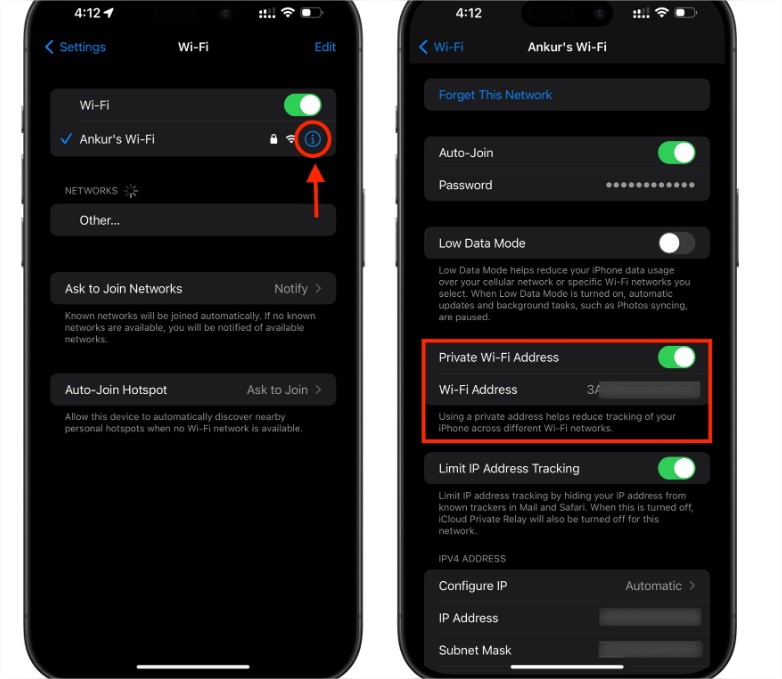
The Fix That Often Gets Missed: Turn Off Private Wi-Fi Address for Your Home Network
If the steps above don't fully resolve it, this one is worth trying next, and it addresses the root cause more directly than reinstalling the pairing file repeatedly. Modern iOS randomizes your device's Wi-Fi MAC address on a per-network basis by default, specifically to make it harder for networks to track your device over time. That's a genuinely good privacy feature in most contexts — but SideStore's minimuxer component depends on reliably recognizing your iPhone as the same consistent device on the local network for the pairing handshake to succeed. A rotating or network-specific MAC address can interfere with exactly that recognition step, which lines up closely with the same category of issue IT administrators run into when MAC-based network access control breaks for iOS devices with this feature left on.
- Open Settings > Wi-Fi on your iPhone or iPad.
- Tap the blue "i" info icon next to your home Wi-Fi network specifically — the same network your computer is also connected to.
- Turn off Private Wi-Fi Address for that network.
- Reconnect to the network if prompted, then retry the SideStore refresh or the pairing steps above.
"The Certificate Used to Sign SideStore Has Been Revoked or Changed"
This is a different error entirely from the UDID issue, and it's worth not confusing the two. Apple periodically invalidates free developer signing certificates — sometimes on a routine schedule, sometimes seemingly at random — and when that happens, every app resigned under that certificate, including SideStore itself, stops refreshing and eventually stops opening.
- Reinstall SideStore through iLoader again — this resigns it under your currently active certificate rather than the revoked one.
- If you're running LiveContainer combined with SideStore, avoid installing a second copy on top of an existing one without uninstalling first — several reports trace ongoing certificate mismatches specifically to overwriting an existing install instead of doing a clean reinstall.
- After reinstalling, re-import your pairing file and sign back into your Apple Account before attempting to refresh any other sideloaded apps.
8. Every Other Common Failure, and How to Actually Fix It
"AFC Connection Failure" or "No Wi-Fi or VPN Connection"
This points to the same minimuxer service having trouble, usually for a different underlying reason than the UDID error above.
- If you're using WireGuard or StosVPN instead of LocalDevVPN, switch to LocalDevVPN specifically.
- Turn off any DNS-blocking apps or profiles temporarily.
- Confirm both LocalDevVPN and Wi-Fi show as actively connected on the device.
- Restart SideStore, then restart LocalDevVPN, retrying after each step.
- If nothing else works, replace your pairing file using the same steps outlined above.
SideStore Hangs Partway Through Installing an App
- Update SideStore if an update is available; otherwise simply restart it.
- Clear SideStore's cache from within its settings.
- Try switching to a different Anisette server in SideStore's server settings.
- In the same servers menu, reset
adi.pb, then sign out of SideStore completely and sign back in. - Restart your device, then recreate your pairing file if the problem persists.
SideStore Won't Launch At All
- Confirm SideStore was actually installed through iLoader in the first place, then try reinstalling it.
- If that doesn't help, delete SideStore along with every app you've installed through it, reinstall SideStore, and when prompted to refresh after importing your pairing file, choose "No."
- Install the
SideStore.ipafile to your device, then import that sameSideStore.ipaback into SideStore the way you would any normal app — this forces a clean refresh that resolves the issue in most reported cases.
Apps Expiring Every Seven Days Despite Everything Looking Fine
This almost always comes down to LocalDevVPN not staying connected in the background. SideStore can only refresh your apps automatically while that VPN connection is active, so if it's been disconnected — by a restart, a system update, or simply forgetting to reconnect it — your seven-day countdown keeps ticking with nothing renewing it.
None of these tools require a jailbreak, and none of them touch anything Apple considers off-limits for a legitimate developer-style install — they're simply working within the free developer account system Apple already provides, just automated and made persistent through the VPN-based refresh mechanism SideStore relies on.
Explore More Awareness & Security Content
Discover more security tips, threat analysis, hacking awareness, and practical guides designed to help you stay safe online.
Visit Awareness & Security →