Windows 11 · Performance
The 90-Second Fix That Speeds Up Windows 11 More Than Any Other Setting
Somewhere between the printer you sold two years ago and the "helper" app three programs installed without asking, your startup list quietly turned into a waiting room.
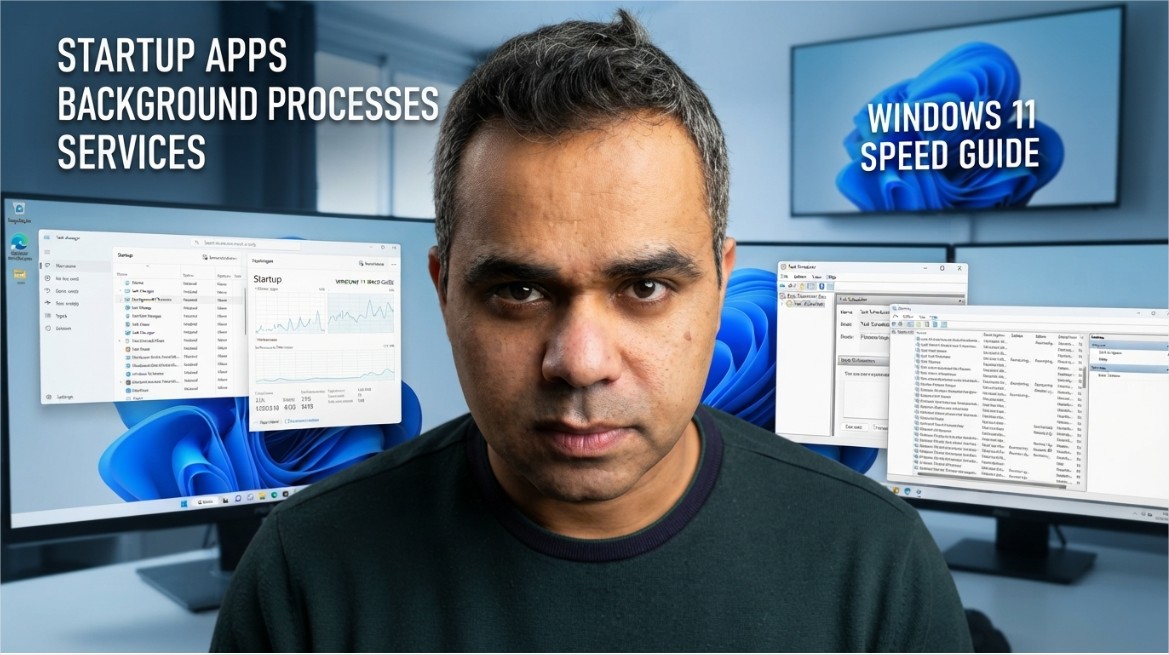
This guide walks through cutting Windows 11's startup apps down using Task Manager's impact ratings, disabling background processes for apps you rarely open, and identifying which Windows services (Print Spooler, Fax, Bluetooth Support) are genuinely safe to disable versus which ones — Windows Update and Defender-related services — should never be touched regardless of how tempting a speed claim sounds. It also covers trading visual effects for responsiveness on older hardware and the unglamorous maintenance habits, like keeping drives from filling up and using Storage Sense, that keep a cleaned-up system from quietly degrading again within a year. Every step uses only built-in Windows tools — no third-party "optimizer" software required
📋 Table of Contents
- Why a Fresh Windows 11 Install Feels Fast and Yours Doesn't
- Cutting Startup Apps Down to What You Actually Use
- Background Apps: The Ones Running When You Think Nothing Is
- Services You Can Usually Disable Safely (And Two You Never Should)
- Visual Effects: Trading Polish for Speed on Older Hardware
- The Boring Maintenance That Actually Moves the Needle
Here's a genuinely satisfying fact: most of the sluggishness people blame on an "aging PC" has nothing to do with the hardware getting weaker. Nothing degrades in a processor just from being three years old. What actually happened is quieter and entirely reversible — a slow accumulation of apps, services, and background processes that each asked for a small permanent seat at boot time, and nobody ever went back to check the guest list.
This isn't a "reinstall Windows and start over" article. Everything below is reversible, none of it requires third-party "optimizer" software, and most of it takes about twenty minutes total.
1. Why a Fresh Windows 11 Install Feels Fast and Yours Doesn't
A brand-new Windows 11 install boots fast for one simple reason: almost nothing is set to launch automatically yet. Every app you've installed since then had the option to quietly add itself to that list, and most of them took it — not out of malice, just because "launch at startup" makes an app feel snappier the moment you click its icon, at the cost of every other moment you're not using it.
Multiply that by however many programs you've installed over a year or two, and you get a machine spending its first thirty seconds of every session loading things you didn't ask it to load right now.
2. Cutting Startup Apps Down to What You Actually Use
This is the single highest-leverage fix on this entire list, and it takes about ninety seconds.
-
Open Task ManagerPress
Ctrl + Shift + Esc, or right-click the taskbar and select it directly. -
Go to the Startup apps tabTask Manager lists every app configured to launch when you sign in, along with a Startup impact rating of Low, Medium, or High.
-
Sort by Startup impactClick the column header to bring the High-impact apps to the top — these are almost always the worst offenders and the best candidates for disabling.
-
Disable anything you don't open dailyRight-click each one and select Disable. This doesn't uninstall the app — it just stops it from launching automatically. You can still open it manually whenever you want.
You can reach the same list from Settings > Apps > Startup if you'd rather toggle things there — both paths control the same list, so use whichever interface you find easier to navigate.
3. Background Apps: The Ones Running When You Think Nothing Is
Startup apps are the ones that launch when you sign in. Background apps are a separate, sneakier category — programs that don't put a window on your screen at all, but keep running quietly, checking for updates, syncing data, or waiting for notifications, indefinitely.
-
Open SettingsPress
Win + I, then go to Apps > Installed apps. -
Check individual app permissionsClick the three-dot menu next to any app, select Advanced options, and look for the background app permission setting — it can usually be set to Never, Power optimized, or Always.
-
Set rarely-used apps to NeverThis is most worth doing for apps you open once a week or less — there's no benefit to a rarely-used app running continuously between sessions.
4. Services You Can Usually Disable Safely (And Two You Never Should)
Windows services are a different animal from startup apps — many are core to the operating system, and disabling the wrong one can cause real problems. That said, a handful are genuinely optional for most home users depending on what hardware you actually own.
| Service | Safe to Disable If... |
|---|---|
| Print Spooler | You don't own or use a printer at all — re-enable instantly if you ever need to print again. |
| Fax | You're not using fax capability, which covers the overwhelming majority of home users today. |
| Bluetooth Support Service | Your device has no Bluetooth hardware, or you never use Bluetooth peripherals. |
| Downloaded Maps Manager | You don't use offline maps in Windows. |
To review services, search for Services in the Start menu, find the entry, right-click it, choose Properties, and set Startup type to Disabled — or safer still, Manual, which lets Windows start it automatically only if something else genuinely needs it.
5. Visual Effects: Trading Polish for Speed on Older Hardware
Windows 11's animations, transparency effects, and shadows look good, but on older or lower-powered hardware, they cost real, measurable responsiveness — and this is one of the few settings where the trade-off is genuinely binary rather than nuanced.
-
Search "Adjust the appearance and performance of Windows"Type this directly into the Start menu search bar and open the result.
-
Select "Adjust for best performance"This disables all visual effects at once — the fastest option if your machine feels sluggish and you don't care about animation polish.
-
Or pick "Custom" for a middle groundKeep font smoothing and a few effects you actually notice, while disabling the rest — a reasonable compromise if going fully minimal feels too stark.
6. The Boring Maintenance That Actually Moves the Needle
None of the flashy tweaks matter much if the basics underneath are neglected. These aren't exciting, but they're the difference between a system that stays fast and one that slowly degrades again over the following year.
- Keep at least 15–20% of your main drive free — an SSD that's nearly full slows down noticeably as it runs out of room to organize data efficiently.
- Enable Storage Sense (Settings > System > Storage) so temporary files and old Downloads clear themselves automatically instead of building up silently.
- Restart occasionally rather than only ever sleeping the machine — a full restart clears accumulated memory clutter that sleep mode never touches.
- Uninstall apps you genuinely don't use anymore, rather than just disabling their startup entry — fewer installed apps means fewer background services and scheduled tasks accumulating over time.
- Revisit your startup list every few months — new installs quietly re-add themselves to it more often than people expect.
None of this required a registry hack, a paid "PC cleaner" tool, or a fresh Windows install. It required going through the guest list your PC has been quietly accumulating and asking, honestly, whether each entry still deserves an automatic seat at every single startup. Most don't. The apps themselves aren't the problem — the fact that nobody ever revisited the decision is.
Do the startup app cleanup first; it's the highest-impact, lowest-risk change on this list. Everything else here is worth doing, but that one alone usually accounts for most of the difference you'll actually feel.
Explore More Awareness & Security Content
Discover more security tips, threat analysis, hacking awareness, and practical guides designed to help you stay safe online.
Visit Awareness & Security →Written by Khalil Shreateh Cybersecurity Researcher & Social Media Expert Official Website: khalil-shreateh.com