Windows 11 · Productivity
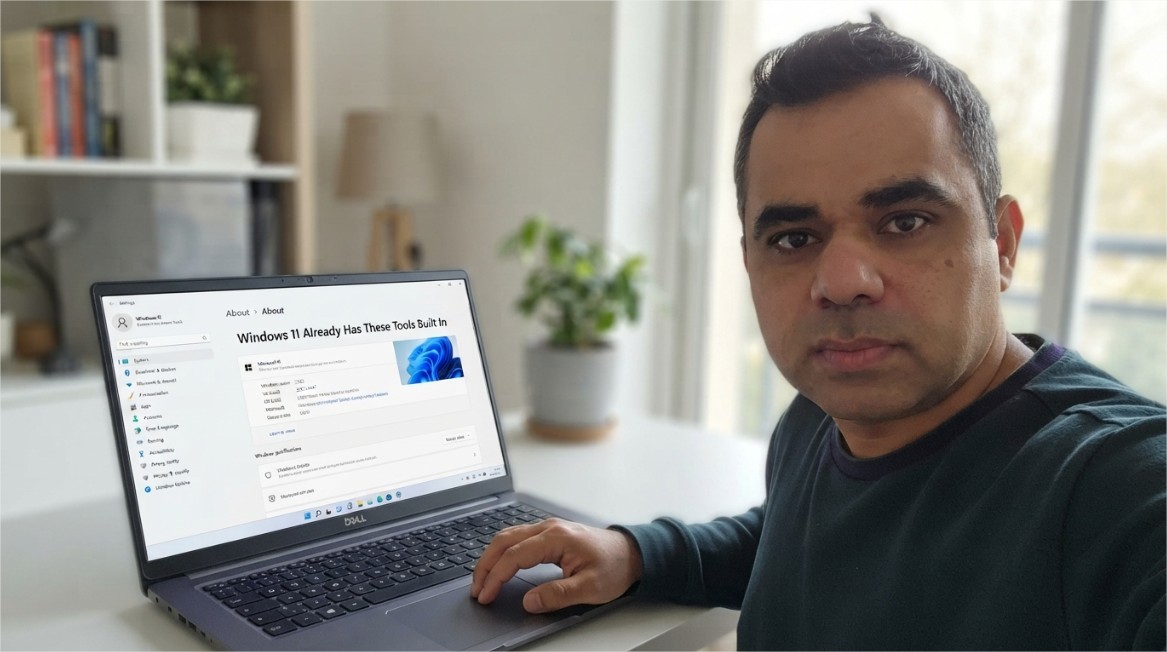
Four Windows 11 Features Almost Nobody Turns On (And Exactly How To)
These aren't hidden settings or registry tweaks. They're built into every edition of Windows 11, sitting off by default, waiting for someone to actually flip the switch.
📋 Table of Contents
- Why Genuinely Useful Features Ship Turned Off
- Snap Layouts: Organizing Windows Without Dragging Anything
- Clipboard History: Copying More Than One Thing at a Time
- Live Captions: On-Device Subtitles for Any Audio on Your PC
- Storage Sense: Letting Windows Clean Up After Itself
- Making These Part of How You Actually Work
Most "hidden Windows features" articles recycle the same short list of settings menus without explaining why a feature stays off by default, what its actual limits are, or when it quietly stops working the way you'd expect. The four features below are chosen specifically because each solves a problem almost everyone runs into weekly — misaligned windows, an overwritten clipboard, missed audio, a drive that's mysteriously full — and each has a specific, occasionally surprising limitation worth knowing before you rely on it.
1. Why Genuinely Useful Features Ship Turned Off
There's a consistent pattern behind why these four stay disabled by default rather than active out of the box: each one either processes something sensitive (clipboard contents, microphone audio) or changes default behavior in a way that could surprise users who never asked for it (automatic file deletion, a new window-arrangement flyout appearing unexpectedly). Microsoft's default posture in these cases favors opt-in over silent enablement — which is reasonable from a privacy and predictability standpoint, but it also means genuinely useful tools sit unused simply because nobody ever saw a prompt asking them to turn it on.
2. Snap Layouts: Organizing Windows Without Dragging Anything
Snap Layouts is the small grid of window-arrangement options that appears when you hover over a window's maximize button, letting you instantly place that window into a pre-defined split — two columns, three columns, a quadrant grid — without manually dragging and resizing anything.
The feature is enabled by default on most Windows 11 installs, but it's disabled on some builds, gets turned off accidentally through a settings reset, or simply goes unnoticed by users who never hover long enough over the maximize button to see it appear.
Open Settings (Win + I), select System, then click Multitasking.
Click the Snap windows section to expand it, and make sure the main toggle is switched on.
Within that same section, confirm the two sub-options are enabled: showing layouts when hovering over the maximize button, and when dragging a window to the top of the screen.
To use it: hover over any window's maximize button, or press the keyboard shortcut below, then click a zone in the layout that appears.
Win + Z
One detail worth knowing: the flyout style and exact number of layout options shown depends on your screen's aspect ratio — wider or ultrawide monitors are offered more layout variations than a standard 16:9 screen, since there's more usable width to divide.
3. Clipboard History: Copying More Than One Thing at a Time
By default, copying a second item on Windows silently overwrites the first — the single most common reason people re-copy the same piece of text three times during one task. Clipboard History fixes this by keeping a running list of everything you've copied, not just the most recent item, accessible from any app at any time.
Open Settings (Win + I), go to System, then Clipboard.
Toggle Clipboard history to on. Alternatively, just press the shortcut below — if it's off, Windows shows a one-click Turn on button directly in the popup.
Copy a few different items as you normally would, then press the shortcut again to see them listed. Click any entry to paste it at your cursor.
Click the pin icon on any entry you reuse often — a signature, a frequently typed address — so it survives even after the list fills up or the PC restarts.
Win + V
| Limit or Behavior | Detail |
|---|---|
| Maximum stored items | 25 entries; older unpinned items are removed automatically as new ones are added |
| Maximum size per item | 4 MB — larger copied content won't be retained in history |
| Content types supported | Plain text, HTML-formatted text, and bitmap images |
| What survives a restart | Only pinned items — everything else clears automatically on reboot |
| Cross-device sync | Optional, tied to a signed-in Microsoft account; can be set to sync automatically or only manually |
4. Live Captions: On-Device Subtitles for Any Audio on Your PC
Live Captions generates real-time, on-screen text for whatever audio is playing on your machine — a video call, a YouTube video, a podcast, even audio picked up through your microphone during an in-person conversation. Unlike captions built into a specific app, this works system-wide, across any program producing sound, and processes the audio locally on your device rather than sending it to a cloud service.
Open Settings (Win + I), select Accessibility, then Captions.
Turn on the Live captions toggle. The first time you do this, Windows prompts you to download a small on-device speech recognition package — accept it and wait for the short download to finish.
Once installed, the captions window appears automatically. Use its own settings icon to reposition it to the top, bottom, or as a floating window, and to adjust text size and color.
To toggle it on or off quickly afterward, use the shortcut below, or the Accessibility section inside Quick Settings (the icon cluster next to your clock).
Win + Ctrl + L
Two limitations are worth knowing before you rely on this for anything important: transcription targets spoken speech specifically, not music or ambient sound, and standard on-device transcription is built around English (U.S.) audio — real-time translation into other languages is a separate, more limited capability tied to specific newer hardware, not something every Windows 11 PC supports equally.
5. Storage Sense: Letting Windows Clean Up After Itself
Storage Sense is Windows' built-in automatic disk-cleanup tool — it periodically clears temporary system files, empties old items from the Recycle Bin, and optionally removes stale files from your Downloads folder, all according to a schedule you define rather than requiring a manual cleanup pass every time a drive fills up unexpectedly.
Open Settings (Win + I), select System, then Storage.
Click into Storage Sense and turn the main toggle on.
Set how often it runs automatically — options typically range from every day to only when your drive is running low on space.
Configure the Recycle Bin and Downloads folder rules separately — each can be set to auto-delete items older than a chosen number of days, or left untouched if you'd rather manage those manually.
6. Making These Part of How You Actually Work
- Enable all four in one sitting rather than one at a time — the combined effect on daily friction is larger than any single feature alone.
- Pin your two or three most-reused clipboard snippets immediately after enabling clipboard history, so they're useful from day one rather than lost after the first restart.
- Set Storage Sense to run weekly rather than only "when low on space" — catching clutter early avoids the jarring moment of an unexpected low-disk warning during real work.
- Try Live Captions during your next video call or webinar in a noisy environment before assuming you don't need it — it's frequently more useful in ordinary distracting conditions than people expect from an accessibility-labeled feature.
- Revisit Settings > System > Multitasking after any major Windows update — feature toggles occasionally reset to default during larger update installations.
None of these four features require a third-party app, a paid upgrade, or any edition beyond standard Windows 11 Home. What they require is the ten minutes it takes to actually open the relevant settings page once, understand the specific limits attached to each, and turn them on deliberately rather than waiting to stumble across them by accident. The gap between "Windows 11 already does this" and "I've actually turned it on" is usually the only thing standing between you and noticeably less daily friction.
Explore More Awareness & Security Content
Discover more security tips, threat analysis, hacking awareness, and practical guides designed to help you stay safe online.
Visit Awareness & Security →