What This Extension Actually Does
When you tap the "read aloud" button on a ChatGPT, Claude, or Gemini reply, the audio plays once through your speakers and then it's gone — none of the three platforms give you a way to keep the file. This extension sits in the background and captures that audio as it's generated, then saves it to your downloads folder as a standard audio file. ChatGPT replies come down as AAC, Claude's are reconstructed into a WAV file from the raw audio stream, and Gemini's save in whatever format Google's player is using at the time (typically Ogg). You don't need to change how you use any of the three sites — you just end up with a file afterward instead of nothing.
Where It's Actually Useful
The realistic use cases are fairly specific, not "AI productivity" in the abstract:
- Listening away from a screen. If you asked for a long explanation, you can save the audio and listen to it on a walk or a commute instead of re-reading it later.
- Language practice. Having a native-sounding narration of a phrase or explanation you can replay as many times as you want, without re-triggering playback in the browser each time.
- Comparing how different assistants explain the same thing. Reading three transcripts side by side is tedious; listening to three different narrations of the same topic makes the differences in phrasing and pacing much easier to notice.
- Keeping a record of a spoken explanation you specifically want to reference again — a walkthrough, a summary, a set of instructions — without needing to type it out yourself.
What You Get in the Popup
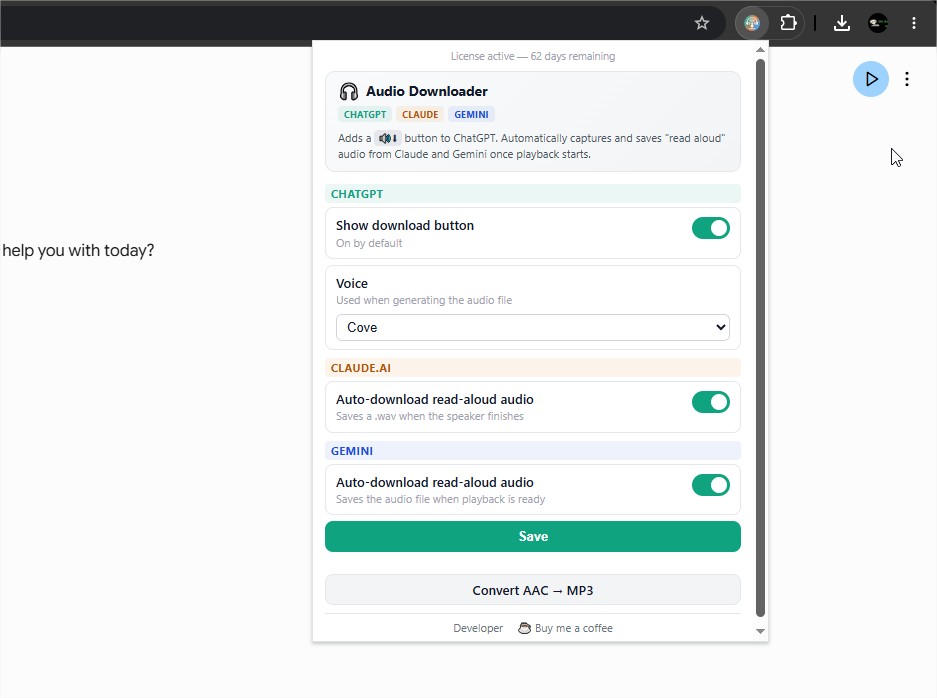
Clicking the extension icon opens a small settings panel with independent controls for each site: a toggle for the small download button that appears next to ChatGPT replies (plus a voice selection used only for that manual download), and separate on/off switches for automatic capture on Claude.ai and Gemini, since those two save automatically as soon as playback starts rather than needing a button click.
Installing It
This extension isn't distributed through the Chrome Web Store, so it installs the same way any unpacked developer extension does — through your browser's Developer Mode. It works in any Chromium-based browser: Chrome, Edge, Brave, and Opera all support loading it this way.
Step by step
- Download the extension's .zip file and unzip it to a folder you won't move or delete later — the browser reads the extension directly from that folder, it doesn't copy it anywhere.
- Open your browser and go to its extensions page:
chrome://extensionsin Chrome,edge://extensionsin Edge, or the equivalent in Brave/Opera. - Turn on Developer mode using the toggle, usually in the top-right corner of that page.
- Click Load unpacked and select the unzipped folder (the one containing
manifest.json, not a folder above or below it). - The extension icon will appear in your toolbar. Pin it if you want it visible at all times.
Activating Your License
The first time you open the extension's popup, it will ask for a license token instead of showing the settings panel. The popup includes a link to a short video walking through exactly where to get one. Once you paste in a valid token, the extension activates and the settings panel appears. That activation is tied to the token and lasts for two months — after that, the popup will ask for a new token the same way, rather than continuing to work indefinitely on the same activation.
Permissions It Asks For, and Why
The extension requests three browser permissions, and each maps to something you can see it doing: storage for remembering your toggle settings and license status between sessions, downloads for actually saving the audio files it captures, and alarms for the once-a-day check that confirms you're running the current version. It doesn't request access to your browsing history, bookmarks, or any site outside of chatgpt.com, claude.ai, and gemini.google.com.
Your download is on its way
Just a short wait — or explore while you wait.
khalil-shreateh.com
🇬🇧 English: https://youtu.be/KGr7-OaU_qw
🇸🇦 فيديو عربي: https://youtu.be/KGr7-OaU_qw
Keeping It Updated
Because the extension works by capturing audio the way ChatGPT, Claude, and Gemini currently generate it internally — not through any public, documented API — it can stop working correctly when one of those sites changes how it handles audio behind the scenes. The daily update check exists because of that: if a new version has been published to fix something that broke, the popup will tell you and link straight to the current download instead of letting the extension keep running against an outdated internal integration.