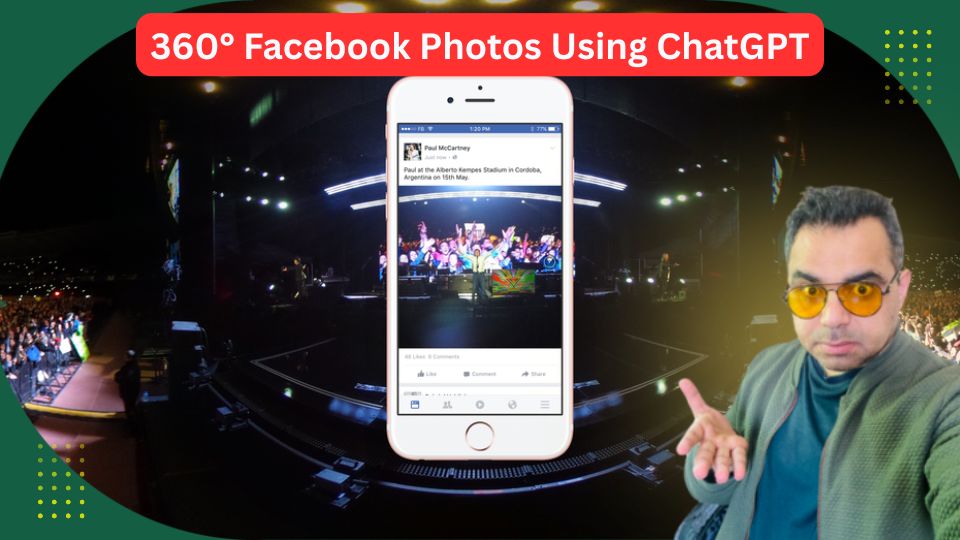
How to Create AI-Generated 360° Panorama Photos and Post Them on Facebook
Did you know that Facebook gives extra algorithmic reach to 360° photo posts? Unlike regular images, 360° photos are rare, interactive, and highly engaging — users can drag with their mouse or tilt their phone to look around inside the image. Facebook's algorithm actively pushes this type of content to more users.
In this tutorial, Khalil Shreateh walks you through how to:
- Generate 360° panorama images using ChatGPT or Gemini AI
- Convert them into Facebook-supported 360° format using a free web tool
- Upload them to Facebook and watch the reach multiplier in action
Whether you want to promote your business, showcase a product, or just impress your friends — this technique is a powerful and underused tool.
Why Use 360° Photos on Facebook?
Facebook's algorithm gives a significant reach boost to 360° content because it's interactive and relatively rare. A regular photo post might reach 10 people organically — a 360° post of the same content can reach 60 or more. It's one of the few free tricks left to beat the algorithm.
Use cases include:
- Promoting products or services (show your product in an exotic location)
- Showcasing your shop, restaurant, or office space
- Creative personal posts to share with friends
- Real estate virtual tours
- Event promotion
Step 1: Generate a 360° Panorama Image with AI
Using ChatGPT (DALL·E):
- Go to ChatGPT and click the "+" icon → select "Create Image".
- Write a detailed prompt. For best results, always include the words "360-degree panorama" in your prompt. Example:"Create a 360-degree panorama image of a person sitting on a chair smoking a hookah on the surface of the moon, with Earth visible in the distance. Ultra-high quality, 4K, detailed."
- Make sure to select "Create Image" mode — not the chat mode.
- Submit and wait for the result.
💡 Pro Tip: If the AI doesn't produce a true panoramic layout, add the word "panorama" explicitly to your prompt. If ChatGPT struggles (especially during peak hours), try again at off-peak hours — response times are noticeably faster late at night.
Using Gemini AI (Alternative):
If ChatGPT isn't cooperating, switch to Google Gemini:
- Open Gemini and select the Pro version.
- Click "Create Image", upload your photo if needed, and write your panorama prompt in English for best results.
- Gemini may handle certain prompts better than ChatGPT, and vice versa — it's worth trying both and comparing.
Note: The quality of results depends heavily on your prompt wording and any reference photos you provide. Experiment with different descriptions for better output.
Step 2: Convert the Image to Facebook 360° Format
A regular image — even one generated as a "360° panorama" — won't automatically display as interactive on Facebook. You need to add the right metadata to the image file so Facebook recognizes it.
Here's how:
- Open your browser and search for "Shreek 360" or go directly to the free web app (search: Facebook 360 photo converter).
- You'll see two options:
- Paste a direct image URL (if your image is hosted online)
- Upload from your device ← use this for AI-generated images
- Click Upload Image and select your AI-generated panorama.
- Check the box confirming you're a human (CAPTCHA).
- Click "Convert to 360°".
- Once done, click the result to download the converted image. Save it with a recognizable name (e.g., chat1, gem2).
The tool embeds special metadata into the image that tells Facebook: "Display this as a 360° photo." Without this step, Facebook treats it as a flat, ordinary image.
Step 3: Upload to Facebook as a 360° Post
- Go to your Facebook profile or page.
- Create a new post → click Photo/Video → select your converted image.
- Click Next → Post.
If the conversion worked correctly, you'll see a small 360° icon/badge appear on the photo thumbnail. When you open the post, you can click and drag to look around inside the image — just like a real panoramic photo.
Bonus: Download Real 360° Photos from Google Street View
Khalil also shared a bonus tip in the video: you can download real 360° photos from Google Maps Street View using a dedicated app.
- Search for "Google Street View 360 Downloader" on the web app store.
- Open Google Maps, navigate to any city or location you want.
- Drop the Street View pegman (the little figure icon) onto any blue-highlighted road.
- Copy the URL from the address bar.
- Paste it into the Street View 360 Downloader app.
- Choose your desired resolution → click Load Image → Download.
You now have an authentic 360° photo of any location in the world — Paris, Tokyo, Ramallah, anywhere — ready to upload to Facebook.
Advanced: Use a JSON Prompt File for Consistent Results
For users who want to go deeper, Khalil mentioned that he has a JSON data file with a pre-built prompt specifically designed to generate Google Street View-style 360° photos using Gemini AI. This prompt produces highly realistic panoramic scenes that closely resemble real street photography.
He plans to share this JSON file in an accompanying article — stay tuned on khalil-shreateh.com for the update.
Editing Your 360° Photos
Before converting and uploading, you can edit your AI-generated image using:
- Photoshop — for manual adjustments, adding logos, or product overlays
- AI editing tools — go back to ChatGPT or Gemini and use their edit/inpaint features
- ChatGPT even has a built-in "Enter 360 World" feature that lets you spin around your generated panorama directly inside the interface
This opens up creative possibilities — for example, take a photo of your product, ask the AI to place it in a famous location (Eiffel Tower, Venice canals, Times Square), and use the result as a marketing post.
Facebook's Algorithm Loves 360° Content
To summarize the reach advantage:
- Regular photo post → reaches ~10 users organically
- 360° photo post → Facebook pushes it to 60+ users or more
Facebook actively promotes 360° content because it's immersive, interactive, and keeps users engaged longer. Since most users don't know how to create it, the competition is low — making this one of the most effective free organic reach strategies available on the platform right now.
Tools Used in This Tutorial
| Tool | Purpose | Link |
|---|---|---|
| ChatGPT (DALL·E) | Generate 360° AI images | chat.openai.com |
| Google Gemini | Alternative AI image generator | gemini.google.com |
| Shreek 360 / Facebook 360 Converter | Add 360° metadata to images | Search "Shreek 360" |
| Google Street View 360 Downloader | Download real Street View photos | Search on web app store |
| Facebook 360 Photo App | Convert & upload to Facebook | khalil-shreateh.com |
Conclusion
Creating and posting 360° photos on Facebook is one of the most effective — and most overlooked — ways to boost your organic reach in 2025. With AI tools like ChatGPT and Gemini now capable of generating panoramic images on demand, and free conversion tools making the upload process simple, there's no reason not to try it.
Experiment with your prompts, try different locations and scenarios, and use this technique to stand out in your followers' feeds.
For more tools, tutorials, and social media hacks, visit khalil-shreateh.com and subscribe to the Khalil Shreateh YouTube channel.
Tutorial by Khalil Shreateh | khalil-shreateh.com